Account Setup

Account Setup

Notes
This article will explain how to set up an account for the first time using either the Client Portal or the Optiweigh app

Setting up your account for the first time

Prior to the delivery of your Optiweigh you will receive an email from Optiweigh Support prompting account setup. Please take note of your username and your temporary password in the email you get sent. If the email is not in your main inbox please check your junk or spam inbox.
There are two ways to set up your account, through the web portal, or with the app.

Using the Optiweigh Web Portal

Click on the word 'Optiweigh' (as shown in the email above). This will take you through to our website. In the top right hand corner select 'Data Portal Login'.

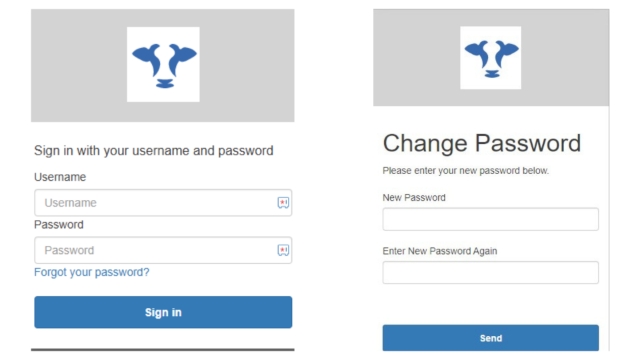
It will then ask you to sign in. Use your username and temporary password from the email. It will then ask you to create your new password (remember this one!)
Using the Optiweigh App

Download the Optiweigh App and select view data on the front screen.


It will then ask you to type in your username and password. Use your temporary password from the email.

It will then ask you to make your name and create a new password.


You will then need to verify your account. Select either email or phone number and type the code that is sent to you in to verify your account. 


Idea
The password you create will be your password to login on both platforms.
Alert
If you need any assistance please call the Optiweigh Support team on 1300 678 493
    • Related Articles

    • Quickstart Checklist

      This article is a one-page summary to get you up and running 1. Set Up Account Log in to the Optiweigh web portal at client.optiweigh.io Set up logins for other team members For more detailed instructions: Account Management 2. Assemble and Inspect ...
    • Setup Guide - Cattle

      How to Setup a New Optiweigh - Cattle This article explains how to setup a new Optiweigh Cattle unit when it is first being put in the paddock. Tools: Scissors/Knife 19mm Spanner / Socket or shifter Pliers Smartphone with up-to-date Optiweigh app ...
    • Setup Guide - Sheep

      How to Setup a New Optiweigh - Sheep This article explains how to setup a new Optiweigh Sheep unit when it is first being put in the paddock. Tools: Scissors/Knife Pliers Smartphone with up-to-date Optiweigh app installed 8mm Spanner Be careful ...
    • Adding / Managing Users on Your Account

      This article will explain how to add and manage the role of your users on your account using the Optiweigh Client Portal. To add/manage users, you must have 'Owner' permissions. Adding Users Open and login to the Optiweigh Client Portal. In the top ...
    • Managing Daily Email Subscription

      Use this article as a guide to managing daily email subscriptions for logins on your account. Daily Email Subscription The daily email subscription can be toggled on/off from the Optiweigh web portal or via the daily email. Web Portal In the top ...