Setup Guide - Sheep
How to Setup a New Optiweigh - Sheep
 This article explains how to setup a new Optiweigh Sheep unit when it is first being put in the paddock.
This article explains how to setup a new Optiweigh Sheep unit when it is first being put in the paddock.
Tools:
- Scissors/Knife
- Pliers
- Smartphone with up-to-date Optiweigh app installed
- 8mm Spanner
 Be careful unloading your Optiweigh Unit. While it is designed to be robust in the paddock there are electronic components (such as the antenna) that can be broken easily whilst unloading.
- Scissors/Knife
- Pliers
- Smartphone with up-to-date Optiweigh app installed
- 8mm Spanner
Be careful unloading your Optiweigh Unit. While it is designed to be robust in the paddock there are electronic components (such as the antenna) that can be broken easily whilst unloading.
Preparation
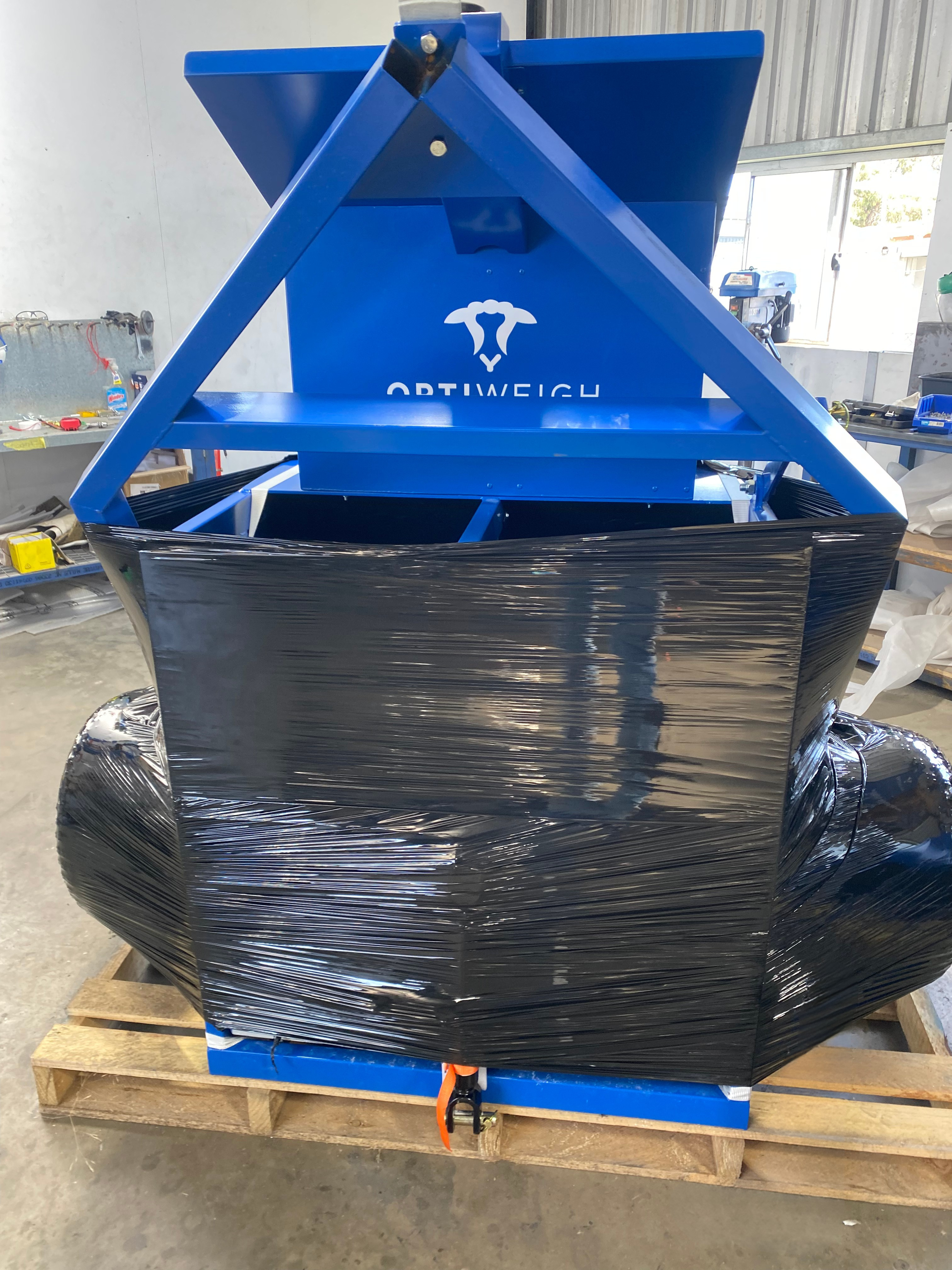
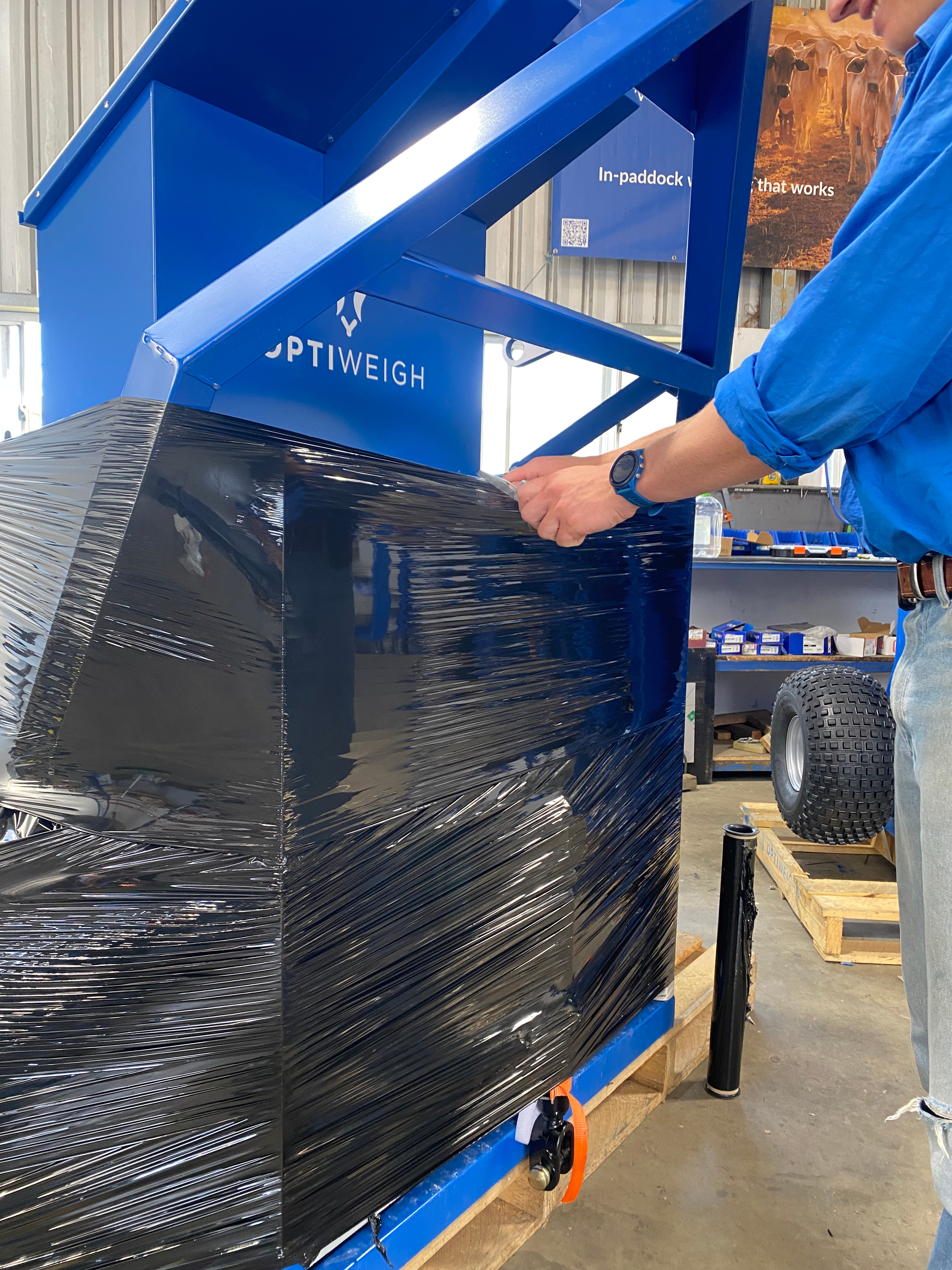
1. Remove the plastic wrapping from the Unit
2. Remove the straps securing the Unit to the pallet, the jack to the unit, and the bags of attractant to the lick tubs
3. Remove the bags of attractant from the lick tubs
Towing / Lifting Mechanism
1. Take out the pin on the stiff bar holding up the drawbar to release the A-frame, then lock the stiff bar horizontal with the lower mount
2. Pull the A-frame down to the ground
3. Pin one side of the Jack into the mount below the tow hitch
It is best to always leave this side pinned in, this means when you're leaving it in the paddock, you can flip the jack up next to the tow hitch so it's out of the way.4. Pin the other side into the mount between the two bays
5. Using the jack, lift the unit up to where the base of the unit is level with the drawbar
6. Lift on to a towball and ensure it is locked before driving off
 Do not exceed 40km/h7. After towing, lower it down by following these instructions in reverse.
 The unit will zero itself but it is a good habit to zero the unit after towing. Follow this link for detailed instructions: Zeroing the Unit8. Zero the unit a. Connect to the unit WiFi
b. Open Optiweigh App -> Unit Maintenance -> Check Unit
c. Press 'Zero' then stand on the platforms to test your weight
Test the tag readers at the same time by waving a RFID tag in front of the readers and listening for a beep!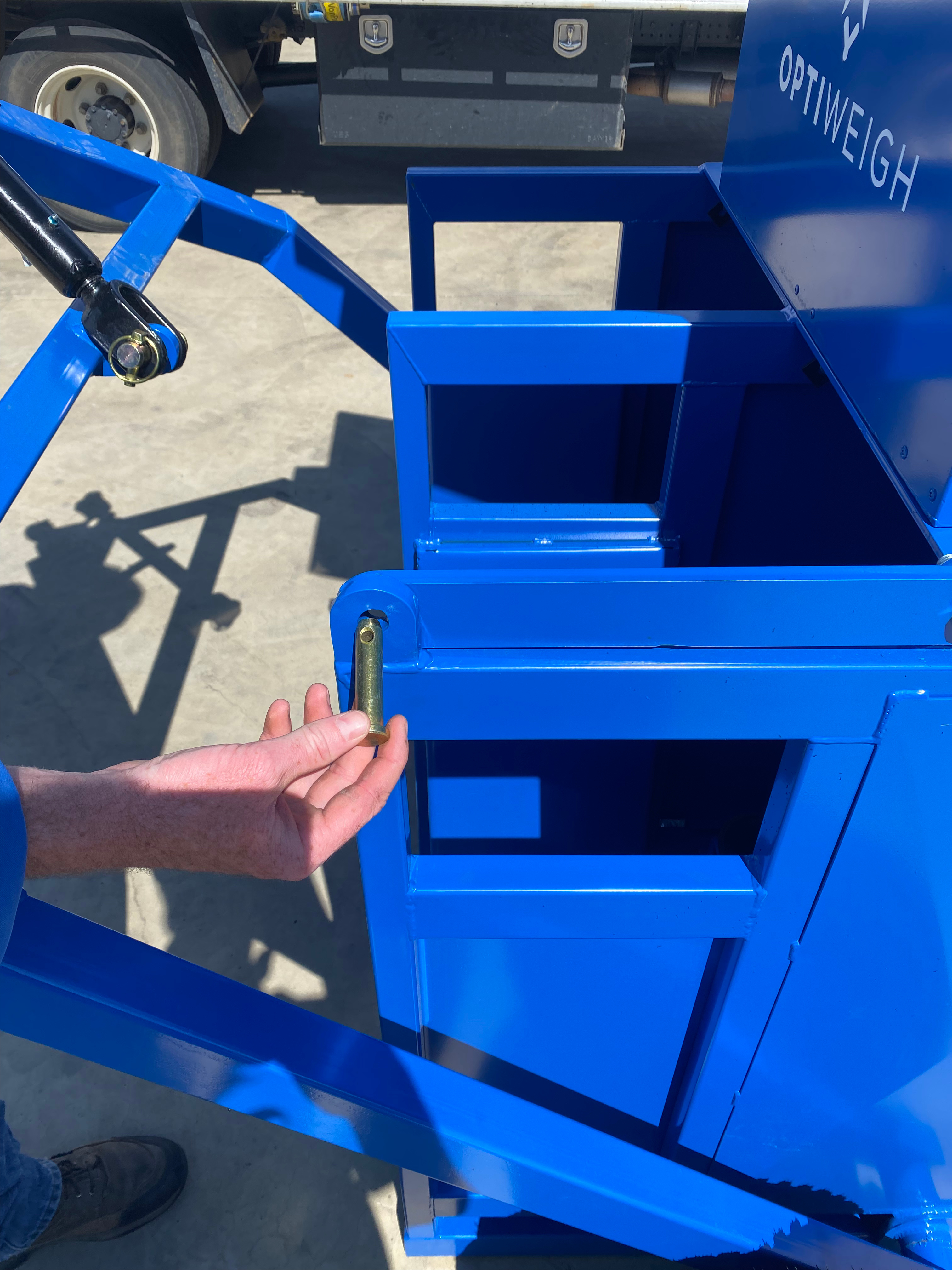
It is best to always leave this side pinned in, this means when you're leaving it in the paddock, you can flip the jack up next to the tow hitch so it's out of the way.
Do not exceed 40km/h
7. After towing, lower it down by following these instructions in reverse.
The unit will zero itself but it is a good habit to zero the unit after towing. Follow this link for detailed instructions: Zeroing the Unit
8. Zero the unit
a. Connect to the unit WiFi
b. Open Optiweigh App -> Unit Maintenance -> Check Unit
c. Press 'Zero' then stand on the platforms to test your weight
Test the tag readers at the same time by waving a RFID tag in front of the readers and listening for a beep!
Usage
Setup in Paddock
Place the unit near to water or where the animals camp
This is a very important part of attracting animals, the unit must be where the animals spend timeEnsure the solar panel is facing North
Ensure the the unit is placed on level ground
This is a very important part of attracting animals, the unit must be where the animals spend time
Using the Lick Tub
The lick tub has a limiter bolted on to the bottom of it. This is to stop animals gorging loose product and finishing it too quicklyWhen filling the tub with loose lick, ensure you take the limiter out, fill the tub, then put the limiter on top
When using blocks, the limiter can stay on the bottom
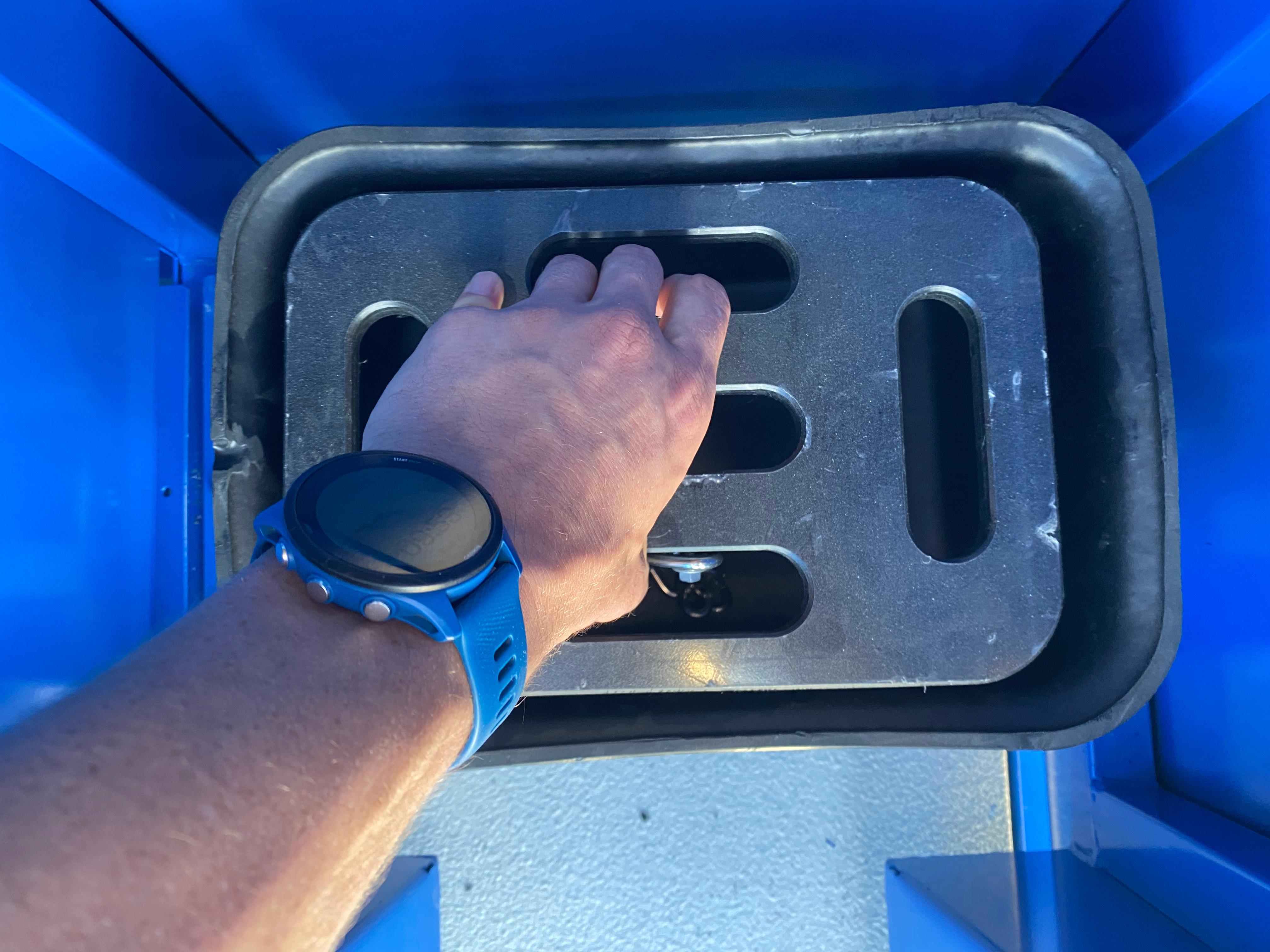
The lick tub has a limiter bolted on to the bottom of it. This is to stop animals gorging loose product and finishing it too quickly
When filling the tub with loose lick, ensure you take the limiter out, fill the tub, then put the limiter on top
When using blocks, the limiter can stay on the bottom
Connections and Status Lights
Before leaving the unit, it's good practice to check on the connections and status lights
Before leaving the unit, it's good practice to check on the connections and status lights
Connections
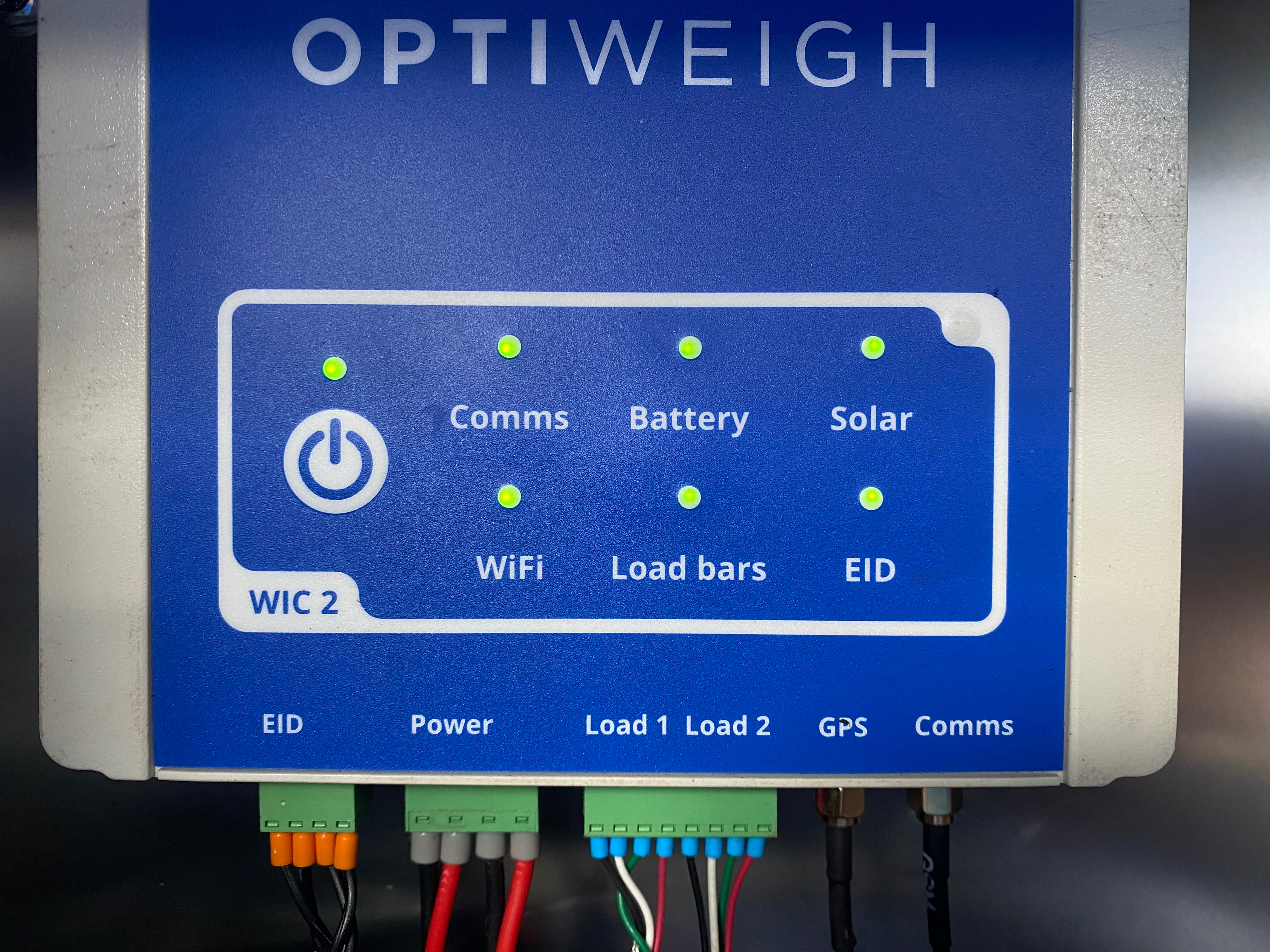
Ensure the three green plugs for EID, Power, and Load bars are plugged in hard up to the WIC2 box with no wiggle
Ensure the two gold connectors for GPS and Comms are screwed in tight (hand tight + half turn with 8mm spanner)
Ensure the three green plugs for EID, Power, and Load bars are plugged in hard up to the WIC2 box with no wiggle
Ensure the two gold connectors for GPS and Comms are screwed in tight (hand tight + half turn with 8mm spanner)
Status Lights
All lights should be solid green on the WIC2 Box. To diagnose a light that isn't solid green, read this document: WIC2 Status LightsThe main three reasons for red or flashing lights are:
1. Load bars going red means the unit needs to be zeroed (instructions above)
2. WiFi, Load Bars, EID lights flashing green means the unit is in test mode, or there is weight on the platform
3. Comms light flashing green or solid red means the unit is searching for a connection. Often it will take 2-5 mins for the unit to connect, otherwise, feel free to call Optiweigh Support.
 If you need any assistance, please don't hesitate to call the Optiweigh Support team on 1300 678 493
All lights should be solid green on the WIC2 Box. To diagnose a light that isn't solid green, read this document: WIC2 Status LightsThe main three reasons for red or flashing lights are:
1. Load bars going red means the unit needs to be zeroed (instructions above)
2. WiFi, Load Bars, EID lights flashing green means the unit is in test mode, or there is weight on the platform
3. Comms light flashing green or solid red means the unit is searching for a connection. Often it will take 2-5 mins for the unit to connect, otherwise, feel free to call Optiweigh Support.
If you need any assistance, please don't hesitate to call the Optiweigh Support team on 1300 678 493