WIC2 Box Warning Lights (Combined)

All lights on the WIC2 box should be solid green (or flashing green in test mode)
Use this guide to diagnose flashing and error lights that appear on the WIC2 computer box for Power, Comms, Battery, Solar, WiFi, Load Bars, and EID.
No action is required for solid green lights, therefore, they will be ignored for the purpose of this troubleshooting guide.

When in test mode the WiFi, Load Bars, and EID lights will all blink Green-OFF
Power

In general, the Power light will only be on or off
Solid Green = WIC is ON
Solid OFF = WIC is OFF
Any other light configuration has to do with Firmware updates
No action is required for any of the above
Comms
You will want to diagnose a problem only when the Comms is NOT solid green
Tools Required
- Smartphone with up-to-date Optiweigh app installed
- Phillips head screwdriver
- 8mm spanner
- 4mm Allen key
In general, the Comms light will change based on connection
Solid Green = Online and all messages sent
Green-OFF Blinking = Connecting to network
Red = Offline OR it has a backlog of unsent messages stored
Green with a red double flash = GPS not detected
Diagnosis
Reboot
Reboot the unit and if the comms light doesn't go solid green, note how long it takes to go red, if at all.
This is a trick for fixing issues, and also will be useful for the Support Team to know if it gets that far
Resolutions
1 - Secure Connections
Ensure the connections are secure
- There are connections from the WIC box to the comms lead to the antenna
- Use an 8mm spanner to ensure the comms and GPS leads are tight (comms is thick, GPS is skinny)
- Using
a 4mm Allen key, undo (or for units s/n 01-302, unscrew) the antenna cover and
check the whip antenna is firmly screwed on.
2 - Firmware Update
Update the firmware by following these instructions, or alternatively follow this link for more detailed instructions
- Connect to the Unit WiFi, and turn off mobile data
- Open Optiweigh App -> Unit Maintenance -> Update Unit -> Update Now
- Power light should start flashing orange/red then turn off and on and beep at you
- If it beeps at you, that means it has gone through!
Worst case scenario, if you can't connect very easily, take a Phillips head screwdriver and unscrew the blue WIC box from the backboard, then try again
3 - External SIM

** Only do this step if your unit has an external SIM! **
Check the External SIM slot and the modem tile
The External SIM slot can be damaged more easily than the internal slot. This means that sometimes the SIM needs to be shifted to the internal slot for safety.
To check / swap the external SIM and modem tile, follow these instructions. Alternatively, watch this video to see one of our support specialists moving the SIM from the external slot to the internal slot
- Using a Phillips head screwdriver, take the WIC off the backboard and unscrew the backplate to gain access to the circuit board
- In the bottom left of the circuit board, there is a tile, pop this out by unscrewing the holder (if you have one), then using your fingernails to hold the tabs back, pull it out
- Remove the SIM card from the external slot then insert it into the back of the tile. Gold side touching the tile and square side in
- Insert the tile back into the slot at a 45º angle then using your fingernails to pull the tabs back, push it in
- Put it all back together in the reverse order

If you can't get it connected, get in touch with Optiweigh Support Specialists at 1300 678 493 or support@optiweigh.com.au, and let them know what you’ve tried.
They can help walk you through some other possible solutions or replacement of parts.
Battery and Solar
You will want to diagnose a problem only when the Battery or Solar lights are NOT solid green
Tools Required
- Smartphone with up-to-date Optiweigh app installed
- Multimeter
- Philips head screwdriver
- 10mm spanner
- 16mm spanner
- Standard 20A Blade fuse
The Battery light will change colour based on the voltage at the time
Green = Above 12V
Red = 12V or less
The Solar light will change based on the last time it charged
Green = Charging in progress OR >14V
Red = Over 24 hours since last charge
Diagnosis
Check the Battery and Solar Voltage at the Unit
Using the Optiweigh App:
- Connect
to the unit WiFi, and turn off mobile data
- Open
Optiweigh app -> Unit Maintenance -> Check Unit
- Check
the Battery and Solar Voltage. Solar should be the same as or higher than the Battery
- Take a screenshot to refer back to if you talk to the support team
If you can’t connect
to the unit easily, take a Phillips head screwdriver and unscrew the blue WIC box from the backboard, then try again.
Using a Multimeter
- Test the battery with the power plugged in
- Unplug the power and test the battery again
- The voltage should be higher with the plug in if the solar is charging
Resolutions
1 - Check the Fuse
The fuse can be found in the black holder, usually above or behind the battery
- Turn
the WIC box off and remove the power plug
- Open the fuse holder and check the fuse.
- If blown, replace with a standard 20A blade fuse
- Ensure
the connections on the battery are tight
2 - Charge the Battery*
Charge
the battery to temporarily keep the unit going
- Unbolt the battery with a 16mm spanner and take it to a charger
- Ensure no bolts / washers are lost
- Once charged, replace the battery and connections
* This is a temporary measure, only to be done as a last resort. Get in touch with Optiweigh Support at (or before) this stage
Never tow the unit with the battery loose in the top box!
Get in touch with the Optiweigh Support Specialists at 1300 678 493 or support@optiweigh.com.au, and let them know what you’ve tried.
They can help walk you through some other possible solutions or replacement of parts.
WiFi
The WiFi light will only change when in test mode
Solid Green = WiFi active but not in test mode
Green-OFF Blinking = In test mode
No action is required for any of the above
Load Bars
You will want to diagnose a problem when the Load Bar light is NOT solid green
Tools Required
- Smartphone with
up-to-date Optiweigh app downloaded
- Phillips
head screwdriver
- Small
flathead screwdriver
The Load Bar light will change based on the zero drift AND when in test mode
Green = Zero drift less than 2kg
Green-OFF Blinking = In test mode OR animal on the platform
Red = Zero drift is greater than 2kg
Diagnosis
Test the scales with the Optiweigh App
- Connect to the unit WiFi, and turn off mobile data
- Open Optiweigh app -> Unit Maintenance -> Check Unit
- Check what the weight is in the 'Current Weight' section
If you can’t connect to the unit easily, take a Phillips head screwdriver and unscrew the blue WIC box from the backboard, then try again.Resolutions
1 - Zero the Unit
Zero
the unit then test your weight
- Ensure there is no weight on the platform then press ‘Zero’
- Make sure the zero is stable and when you stand on the platform your weight is stable
- Check
all four corners, to check if there is any difference between the cells (lined
up with the bolts on the platform)
2 - Blow Out the Unit
- Ensure all mud and muck is cleaned out from underneath the platform, this can be done with a pressure washer, air compressor, or by hand.
3 - Secure Connections
- Ensure
the plug going into the WIC box is firm by pushing the plug in.
- Ensure the leads going into the plug are
tight with a small flathead screwdriver
4 - Recalibration
The calibration is protected by a password to ensure calibration is not done willy nilly, get in touch with Optiweigh Support to get the password and to talk through your situation.
Instructions for recalibration as follows:
- Connect to the Unit WiFi and turn off Mobile Data
- Open Optiweigh App - > Unit Maintenance -> Check Unit
- Press 'Calibrate' and type in the password. (Password is changed regularly, contact Optiweigh Support)
- Ensure nothing is on the scales when you press zero
- Jump on the scales and type your weight in (or a known weight) and press OK
- Should come back with calibration successful, when you get off ensure it goes back down to zero
Get in touch with the Optiweigh Support Specialists at 1300 678 493 or support@optiweigh.com.au, and let them know what you’ve tried.
They can help walk you
through a recalibration or replacement of parts.
EID
You will want to diagnose a problem when the Load Bar light is NOT solid green
Tools Required
- Smartphone with up-to-date Optiweigh app downloaded
- Small flathead screwdriver
- NLIS or EID tag
The EID light will change based on the quality of the tuning AND when in test mode
Green = Tuning is good
Green-OFF Blinking = In test mode OR animal on the platform
Red = Tuning is bad
Diagnosis
Test the reader with the Optiweigh App
- Connect to the unit WiFi, and turn off mobile data
- Open Optiweigh app -> Unit Maintenance -> Check Unit
- Wave a tag in front of the panel reader (in line with the tub) and test the range
If you can’t connect to the unit easily, take a Phillips head screwdriver and unscrew the blue WIC box from the backboard, then try again.Resolutions
1 - Secure Connections
- Ensure the connections into the plug and into the WIC2 box are secure with a flathead screwdriver
- Test the reader again
2 - Bypass the Adaptor Box (For Units S/N 70 - 301)
- Cut off the old black tag reader plug
- Strip back the grey cable about 5cm
- Cut off the Yellow/Green lead
- Strip back the two black leads exposing ~5mm of copper wire
- Remove the green plug from the adaptor box lead and unscrew the leads going into it
- Put the stripped wires in the plug on the right side with the screws facing towards you (as pictured in Image 1) and screw on tight
- The order of the leads does not matter
- Plug into the blue WIC box
- Ensure leads are in the correct way (as pictured in Image 2)
- Test the tag reader
Image 1:
Image 2:
Alternatively, follow this link for instructions with more photos.
Get in touch with the Optiweigh Support Specialists at 1300 678 493 or support@optiweigh.com.au, and let them know what you’ve tried.
They can help walk you through a recalibration or replacement of parts.
All Lights
Tools Required
- Smartphone with up-to-date Optiweigh app downloaded
- Small flathead screwdriver
- 10mm Spanner
- 4mm Allen Key
- Multimeter
Diagnosis
All lights will Blink Green-Red-Off and Beep when there is no power from the battery
Resolutions
1 - Check the Fuse
The fuse can be found in the black holder, usually above or behind the battery
- Turn the WIC box off and remove the power plug
- Open the fuse holder and check the fuse.
- If blown, replace with a standard 20A blade fuse
- Ensure the connections on the battery are tight with a 10mm spanner
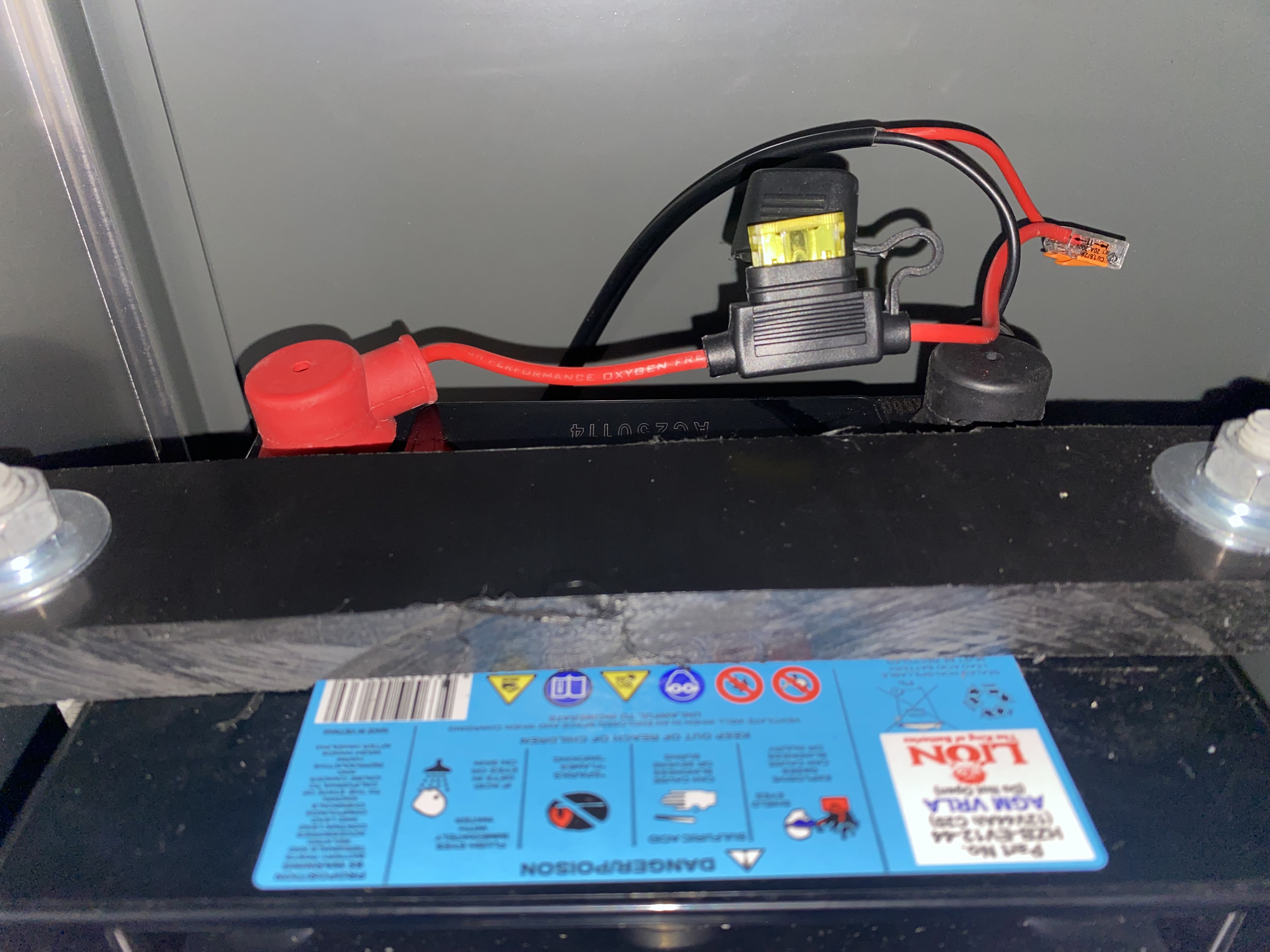
- If blown, replace with a standard 20A blade fuse
2 - Secure Connections
- Follow the lead from the battery to the Earth to the WIC2 box looking for any exposed wire or loose connections
- Ensure the connections into the plug and into the WIC2 box are secure with a flathead screwdriver
- Ensure the leads going to the Earth are secure with a 4mm Allen Key
Get in touch with the Optiweigh Support Specialists at 1300 678 493 or support@optiweigh.com.au, and let them know what you’ve tried.
They can help walk you through a recalibration or replacement of parts.